Adding collaborators to Modernisation Platform accounts
Collaborators are GitHub users who are not members of the ministryofjustice GitHub organisation.
Organisation members access the Modernisation Platform through a GitHub team.
To enable collaborators to use the Modernisation Platform we need to give them the following access:
- Access to our GitHub repositories (if needed)
- Access to the relevant AWS accounts
- Access to be able to approve deployments (if needed)
External collaborator access must be requested by a Ministry of Justice member of the relevant application team using the New Collaborator issue template. External collaborators must not submit requests on their own behalf.
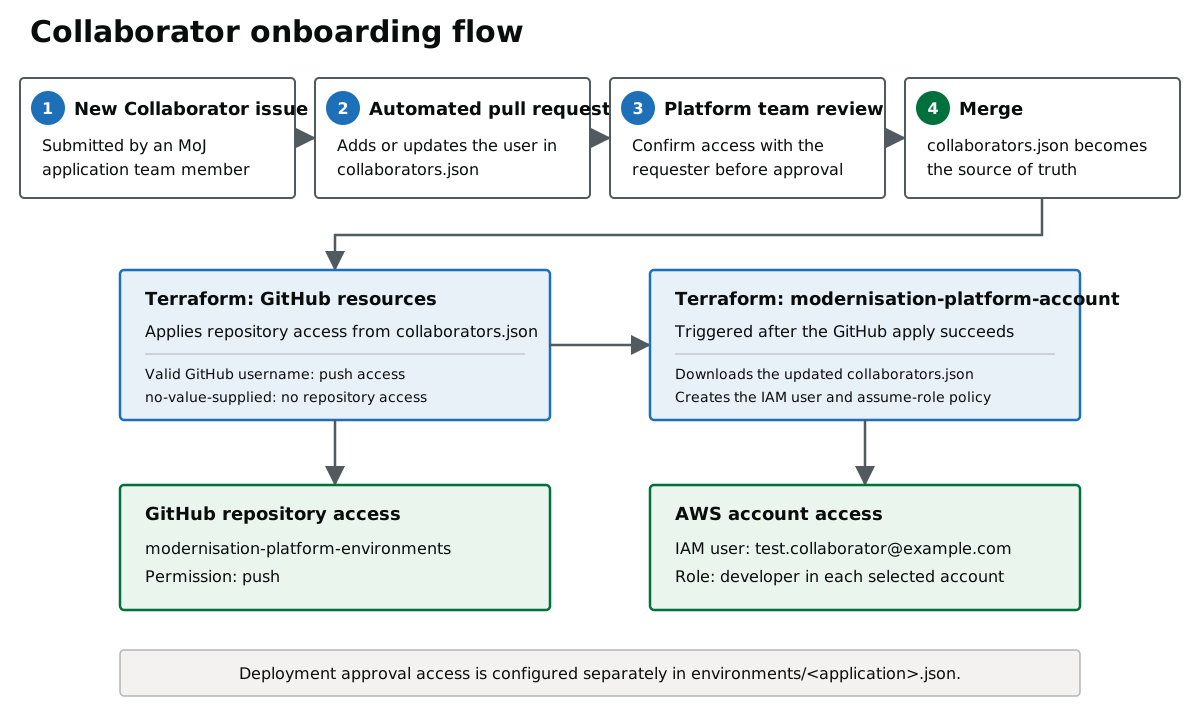
Submitting the issue automatically raises a pull request to add the collaborator. The Modernisation Platform team must review the pull request and confirm the requested access with the requester before approving it.
Review the request
Before approving the automatically raised pull request:
- Confirm that the requester is a Ministry of Justice member of the relevant application team.
- Confirm the collaborator's details and requested AWS access with the requester.
- Confirm whether GitHub repository access or deployment approval permissions are required.
- Ensure you have contact details for the external collaborator.
Access to our GitHub repositories
Collaborators who need to create infrastructure require push access to the modernisation-platform-environments repository. Enter the collaborator's valid GitHub username in the issue form. The automatically raised pull request adds it to collaborators.json, and our GitHub Terraform code grants the required access.
If the collaborator does not require access to GitHub repositories, enter the exact value no-value-supplied in the Collaborator GitHub username field. This prevents Terraform from granting repository access.
This process does not grant access to other repositories, including modernisation-platform-ami-builds.
Access to the relevant AWS accounts
The automatically raised pull request adds the collaborator to the collaborators.json file. Check that the generated account names and access levels match the request before approving it.
Valid access levels are detailed here.
When the pull request is merged, the Terraform: GitHub resources workflow applies the GitHub changes and automatically triggers the Terraform: modernisation-platform-account workflow. This workflow downloads the updated collaborators.json file and creates the collaborator's IAM user and account access. Confirm that both workflows complete successfully before configuring console access.
Once their IAM user has been created, log into the AWS console yourself and:
- Switch into the superadmin role in the Modernisation Platform account.
- Go to their IAM user in IAM Users.
- Go to the Security Credentials tab.
- Configure console access with an autogenerated password (Note a user can only update their password once MFA has been enabled).
- The user will need to assign an MFA device on the first log in.
- The user will need to log out and back in to finish enabling MFA.
- The user can go to the Security Credentials tab to change the password.
Send the collaborator the Working as a Collaborator guide, which explains how to sign in, configure MFA and use their access.
Example file entries
{
  "users": [
    {
      "username": "test.collaborator1@example.com",
      "github-username": "test-github-1",
      "accounts": [
        {
          "account-name": "sprinkler-development",
          "access": "read-only"
        },
        {
          "account-name": "sprinkler-development",
          "access": "developer"
        },
        {
          "account-name": "testing-test",
          "access": "read-only"
        }
      ]
    },
    {
      "username": "test.collaborator2@example.com",
      "github-username": "no-value-supplied",
      "accounts": [
        {
          "account-name": "sprinkler-development",
          "access": "read-only"
        }
      ]
    }
  ]
}
Diagram
Access to approve deployments
If the request specifies deployment approval access, add the collaborator's GitHub username to the additional_reviewers list for each requested environment in the relevant environments/<application>.json file. Raise and merge a separate pull request for this change.
GitHub environments support a maximum of six reviewers. The application team and Modernisation Platform team occupy two of these places, leaving space for up to four additional reviewers.
See additional_reviewers in the environment example.
Inactive collaborators
Collaborator access is monitored automatically. After 30 days of inactivity, the application team is notified. After 45 days, the collaborator's access keys and console access are disabled. After 60 days, a pull request is raised to remove the collaborator.
See Access Key Management for more information.
Removing collaborators
- Remove the collaborator from every
additional_reviewerslist in the relevantenvironments/<application>.jsonfiles. - Remove the collaborator's entry from collaborators.json and merge the pull request.
- Confirm that the Terraform: GitHub resources workflow completes successfully and triggers the Terraform: modernisation-platform-account workflow.
- Confirm that the account workflow removes the collaborator's IAM user and access.
If the account workflow cannot delete the IAM user, delete it manually as a superadmin, then rerun the failed workflow.
Was this page useful?